Why I (sometimes) use Generative AI in Post Processing
When it comes to landscape photography, I do not consider myself a documentarian. I don't think I am alone in that regard. I am (I hope) sharing beautiful photos that tell stories and spark emotions, using the tools and technologies available at that time. That could have been glass filters on the lens, very slow (or fast) shutter speeds, dodging and burning in the darkroom or, in the software realm, computational photography, Clone Stamping, exposure blending, digital filters and presets and localized development (masking).
The latest tool in the tool chest is Artificial Intelligence, or more specifically Generative Artificial Intelligence (Gen AI, for short), and it has become - not just for photographers - a very polarizing piece of technology.
This is the latest article in my series on practical generative AI for photographers.This article is not so much about the "how" but the "why" I use Gen AI as a post-processing tool. I have plenty of other articles that discuss the how, right here on Behance.
I will share below several before and after Gen AI images and talk about why I opted to use the feature. In some cases it is a technical issue, in others, more of an aesthetic desire.
Reason 1 - Distraction Removal
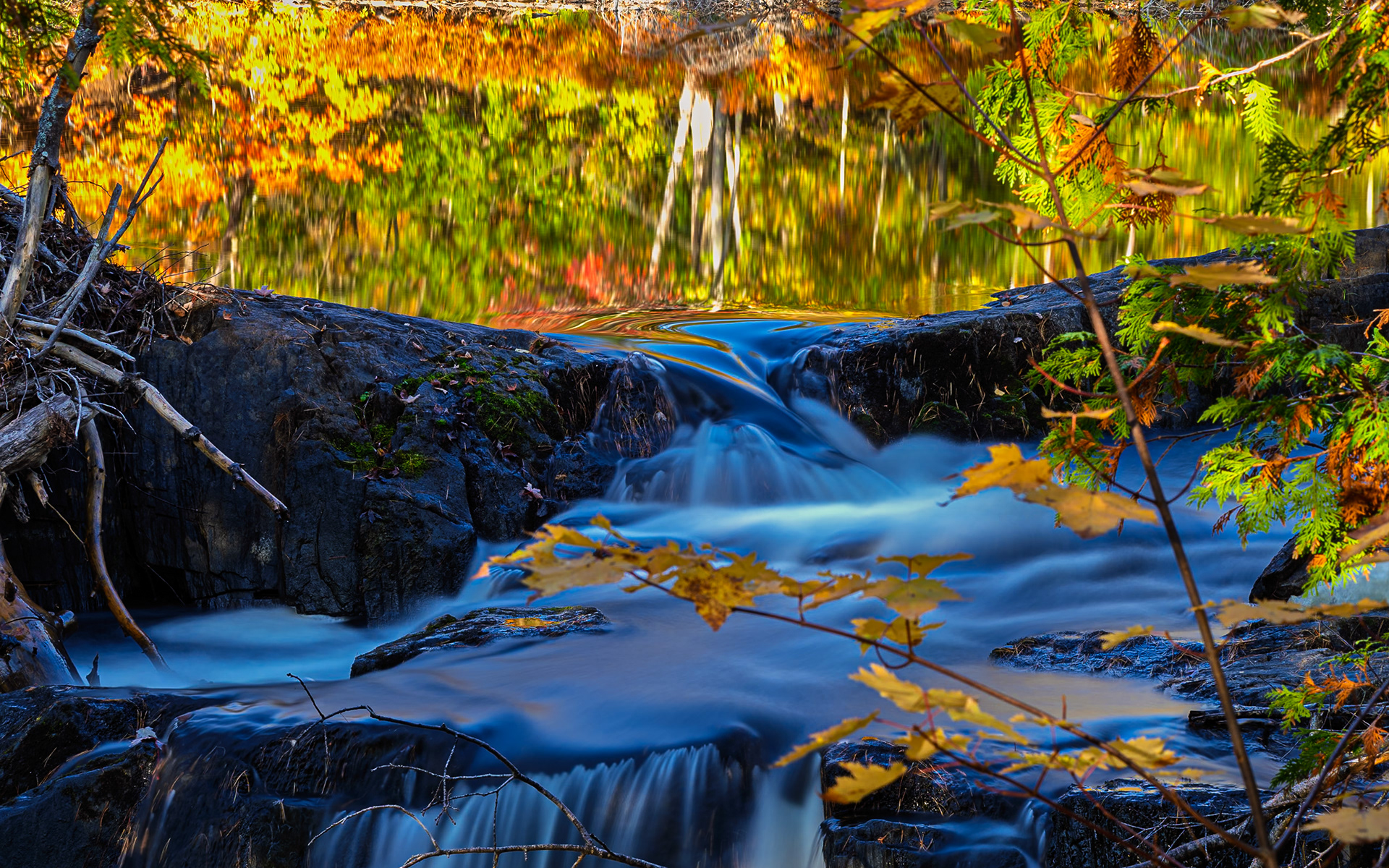
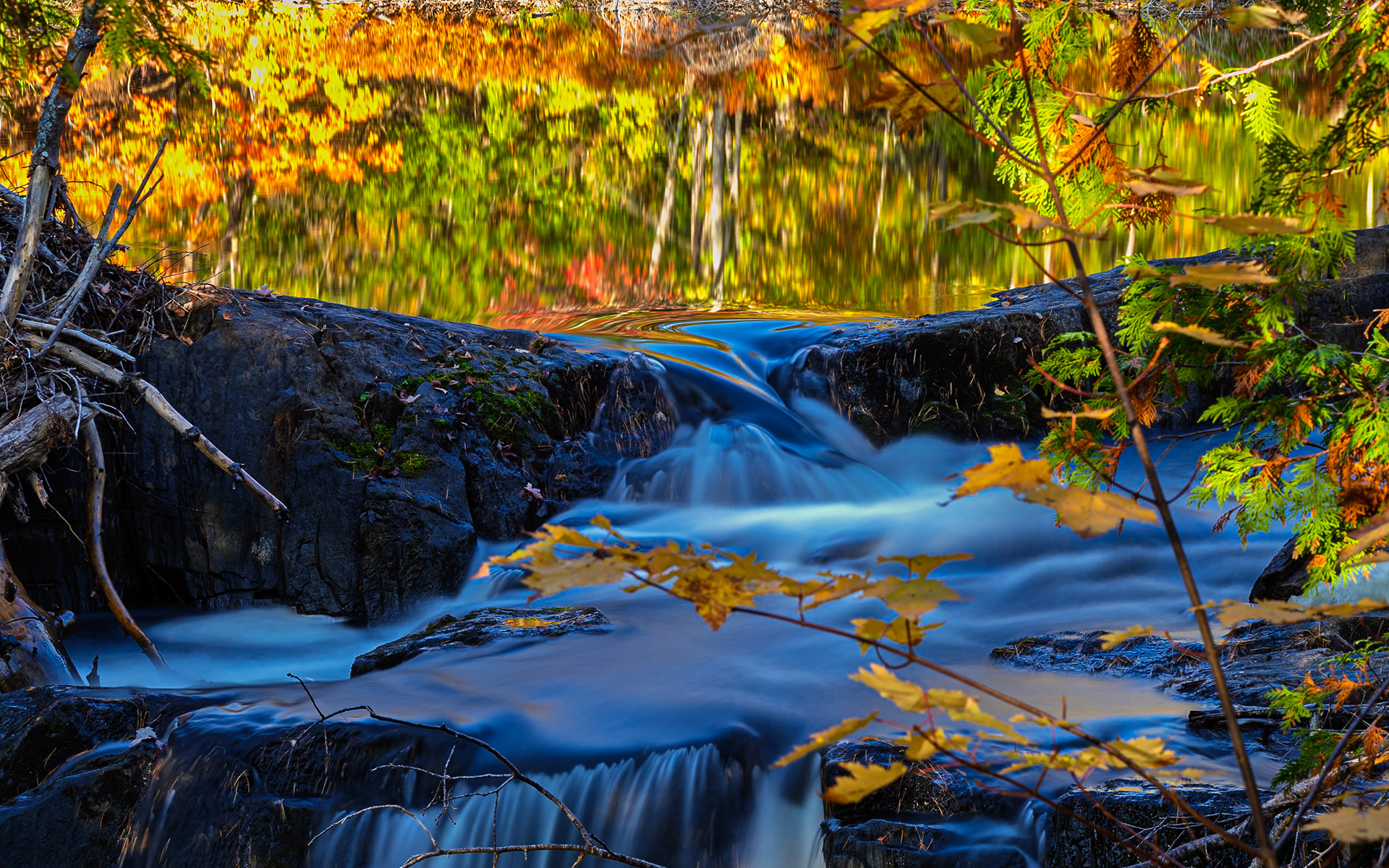
Using a mix of computational photography features in my OM System OM1 Mark II Live ND), and Generative Remove in Lightroom helped me do two things: 1) Create a long exposure without the need for traditional glass Neutral Density filters and 2) eliminate washed out highlight in the tree trunks reflection.
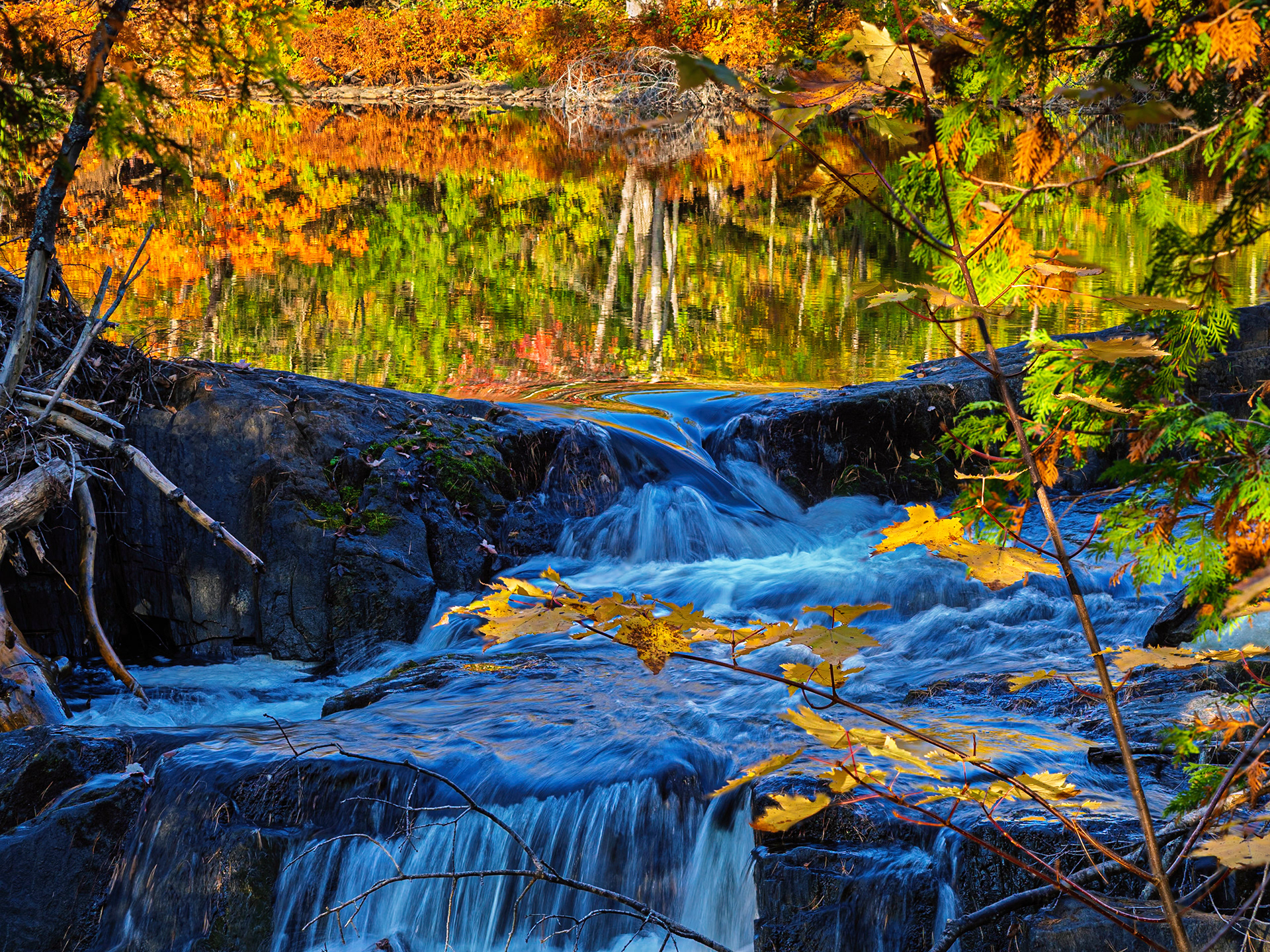
I also used Photoshop to focus-stack this image, so that I could have both the foreground and background in focus. Focus stacking requires two (or ideally more) images where the camera focuses on different distances within the scene. Those resulting images are then stacked as layers in Photoshop and then either using automated workflows like Auto Blend layers or by manually (not fun, but sometime necessary) masking each image to show/hide the desired areas.
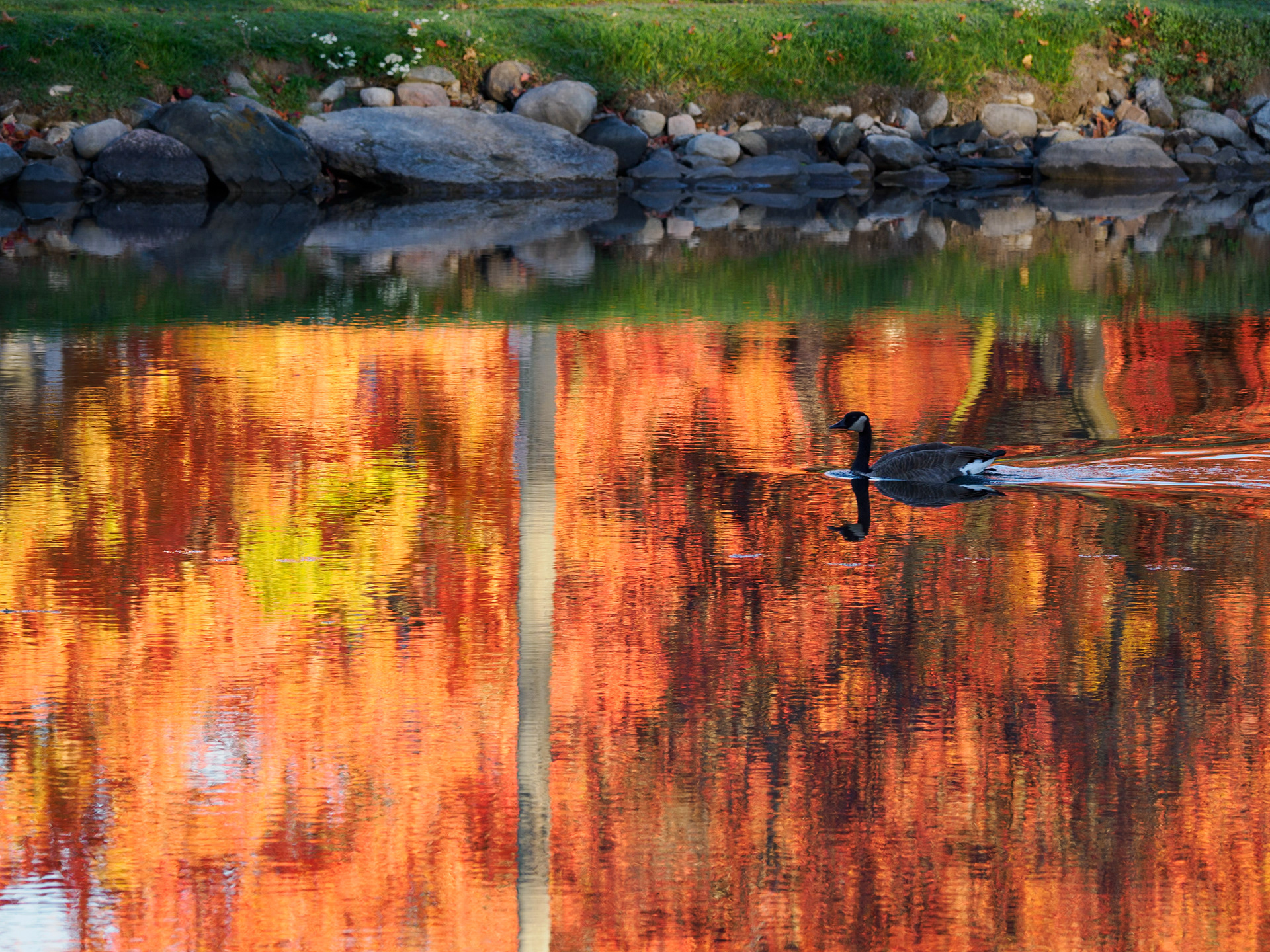
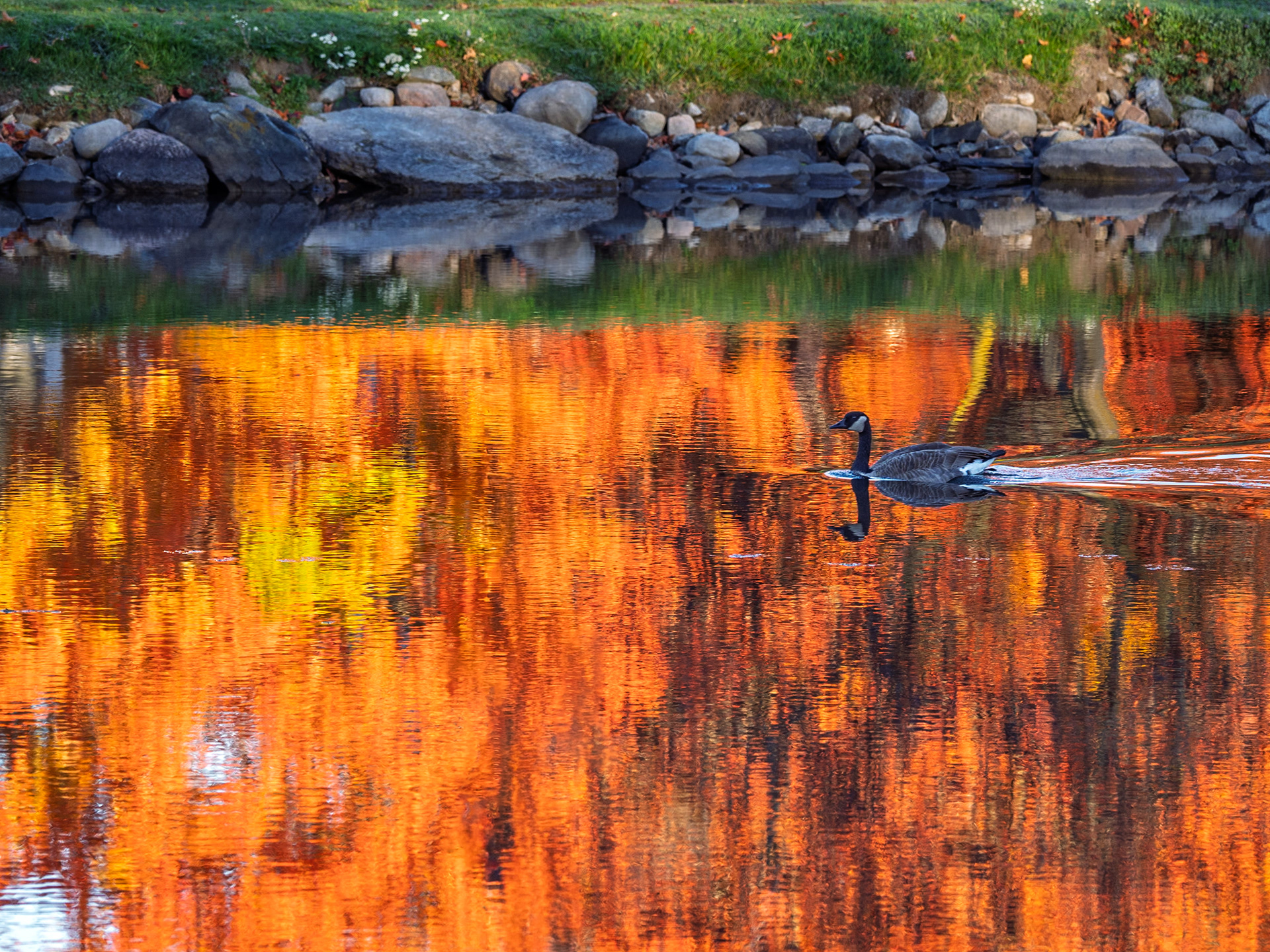
Capturing the autumn reflections in the Trent River was my original goal (mission accomplished) but when this sole Canada Goose came by, I had to act quickly. Unfortunately, a light pole, brightly illuminated by the rising sun, became a glaring part of the scene. I worked with both traditional editing tools and Lightroom’s Generative Remove (powered by Adobe Firefly) to eliminate the pole reflection, using it much like a powerful healing brush or clone stamping tool.
In a social media post, the end result is likely seamless, but there are limitations to Generative AI in terms of resolution, so printing this image might make the editing more obvious. There are more time consuming ways to create a seamless, higher quality rendition using Photoshop (and possibly other tools). I cover some of these techniques in a series of articles (Practical Generative AI for Photographers) I’ve published here on Behance,
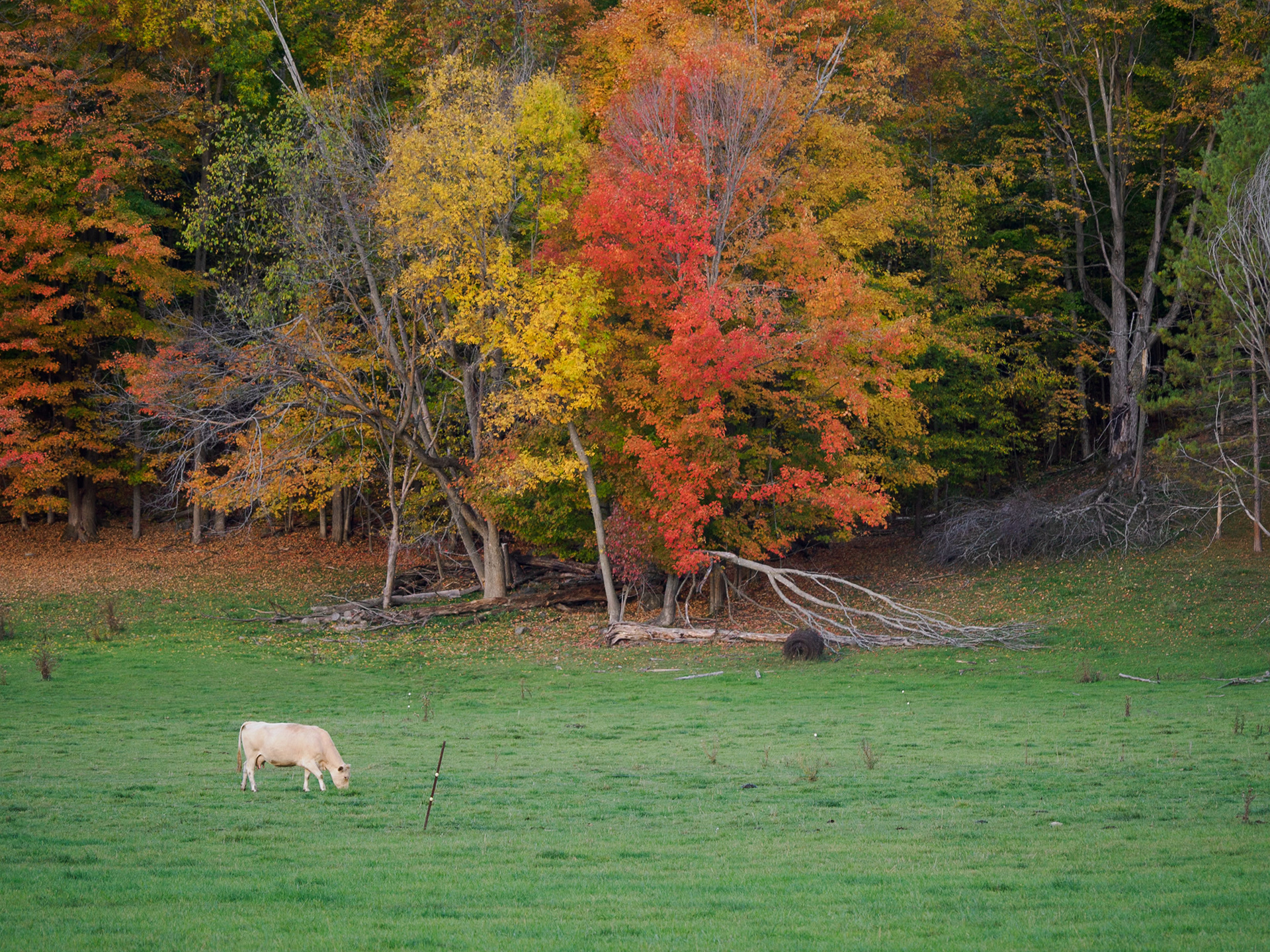
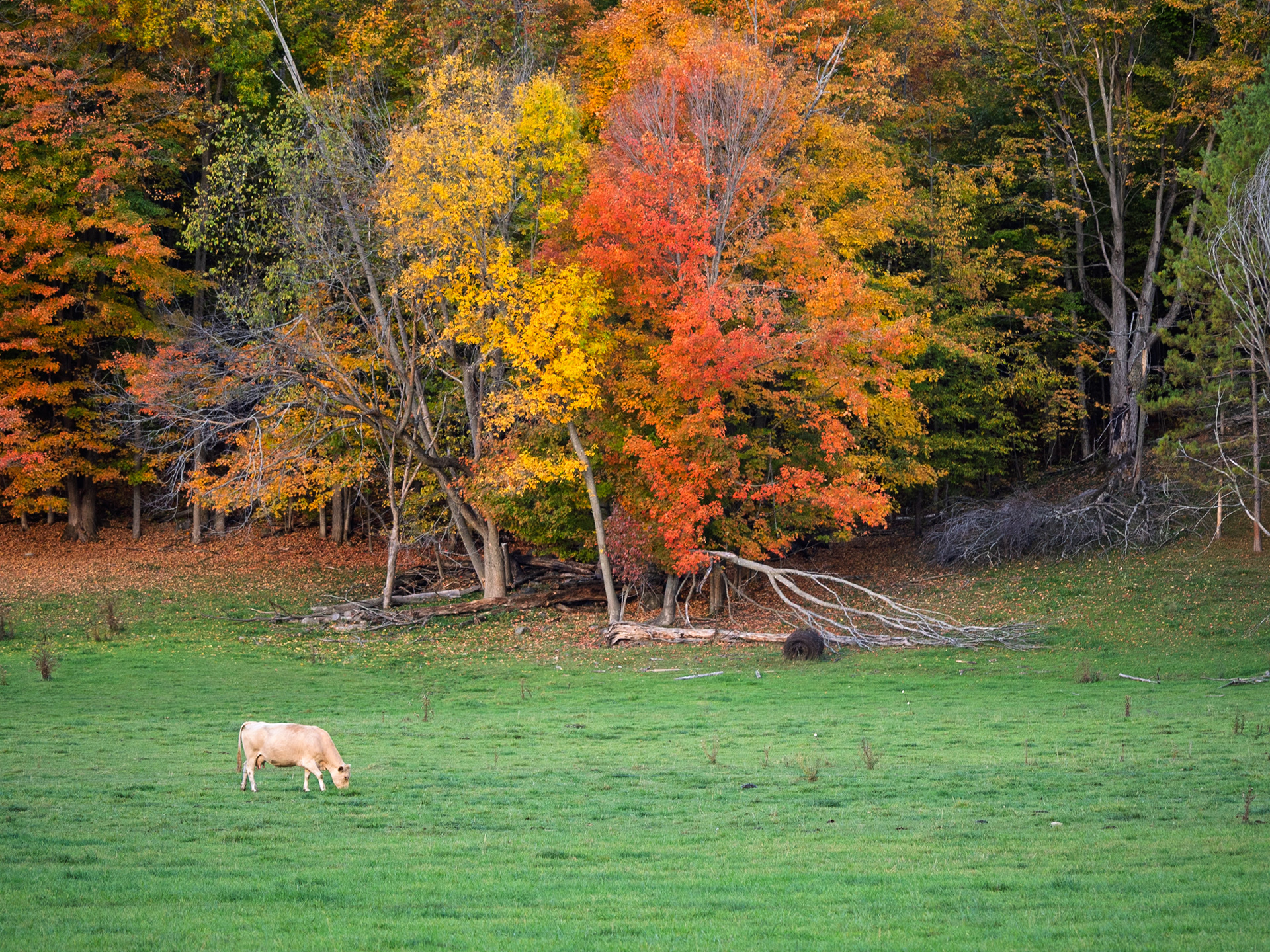
Using a combination of AI and non AI Remove functions in Lightroom, I eliminated the multiple distracting (and unattractive) electric fencing posts in the field. The new Adaptive Color profile is now my new go to for most images, at least as a starting point.There I times when I return to the Landscape or Vivid profiles, but not as often as I thought I might have to.

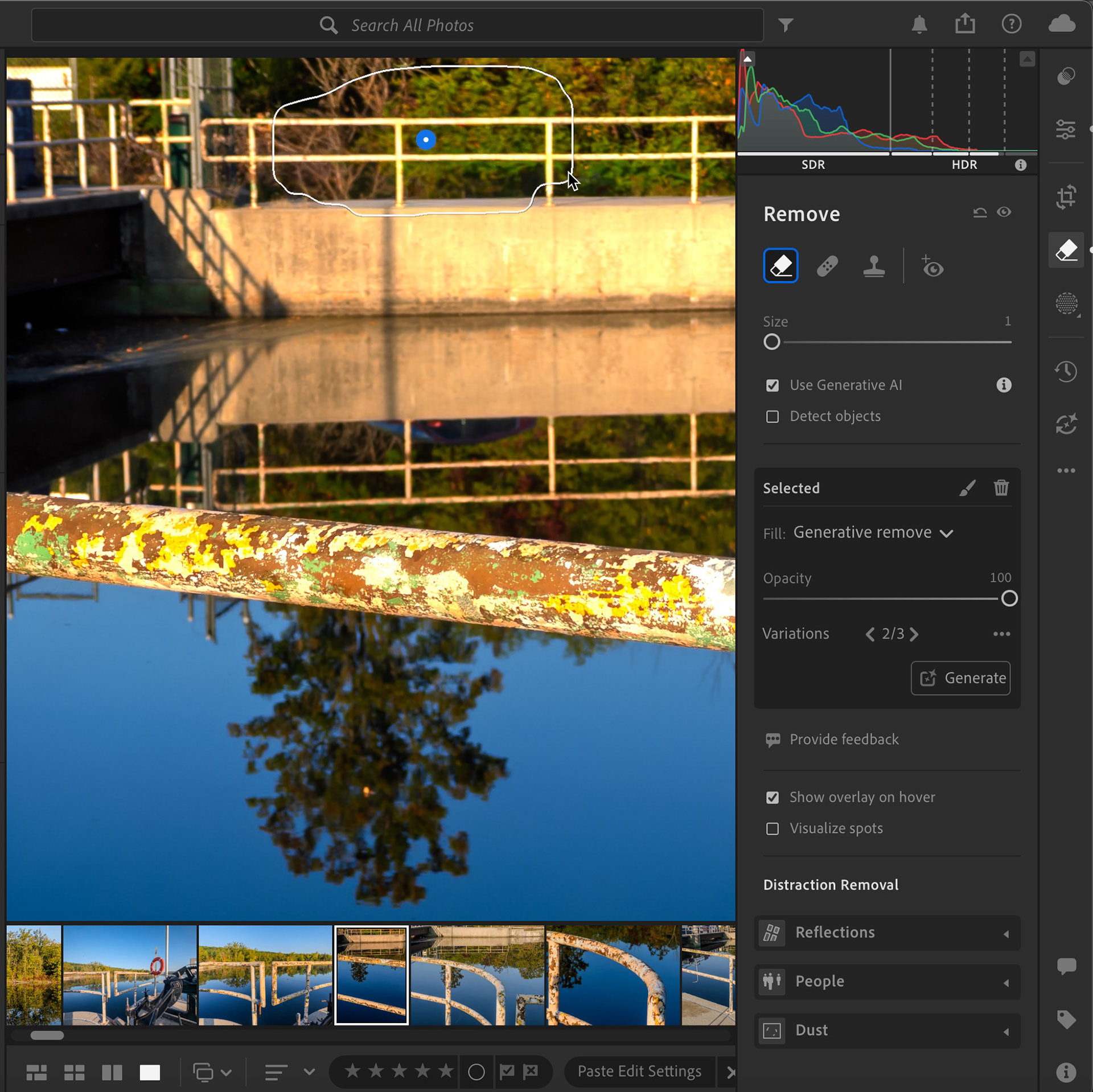

I intentionally captured this image to try and break Generative Remove in Lightroom. I was shocked -, in a good way, at what a seamless job Lightroom (and Firefly) did in not only removing the car, but maintaining the structure of the metal barricade in front of the car.
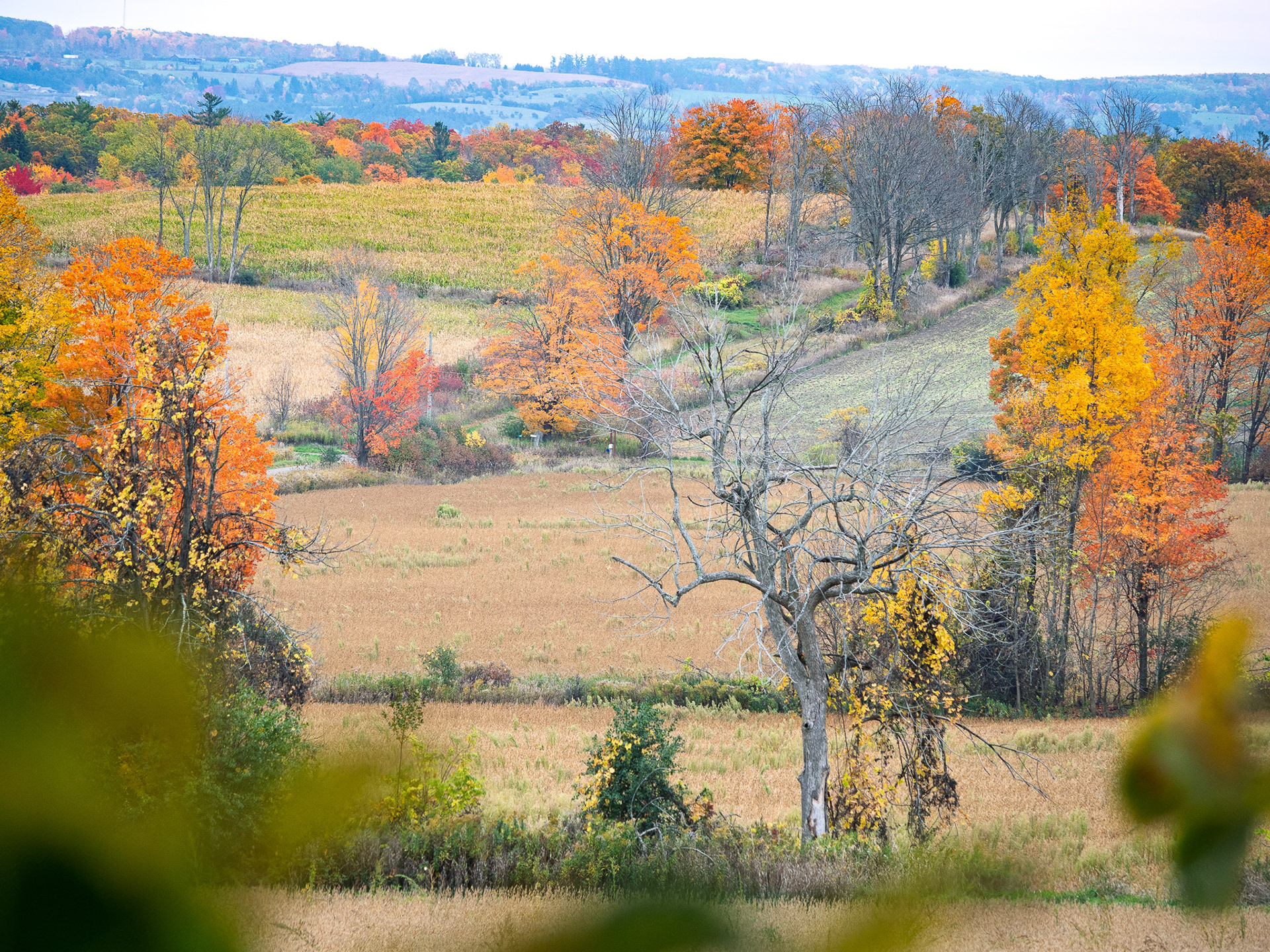
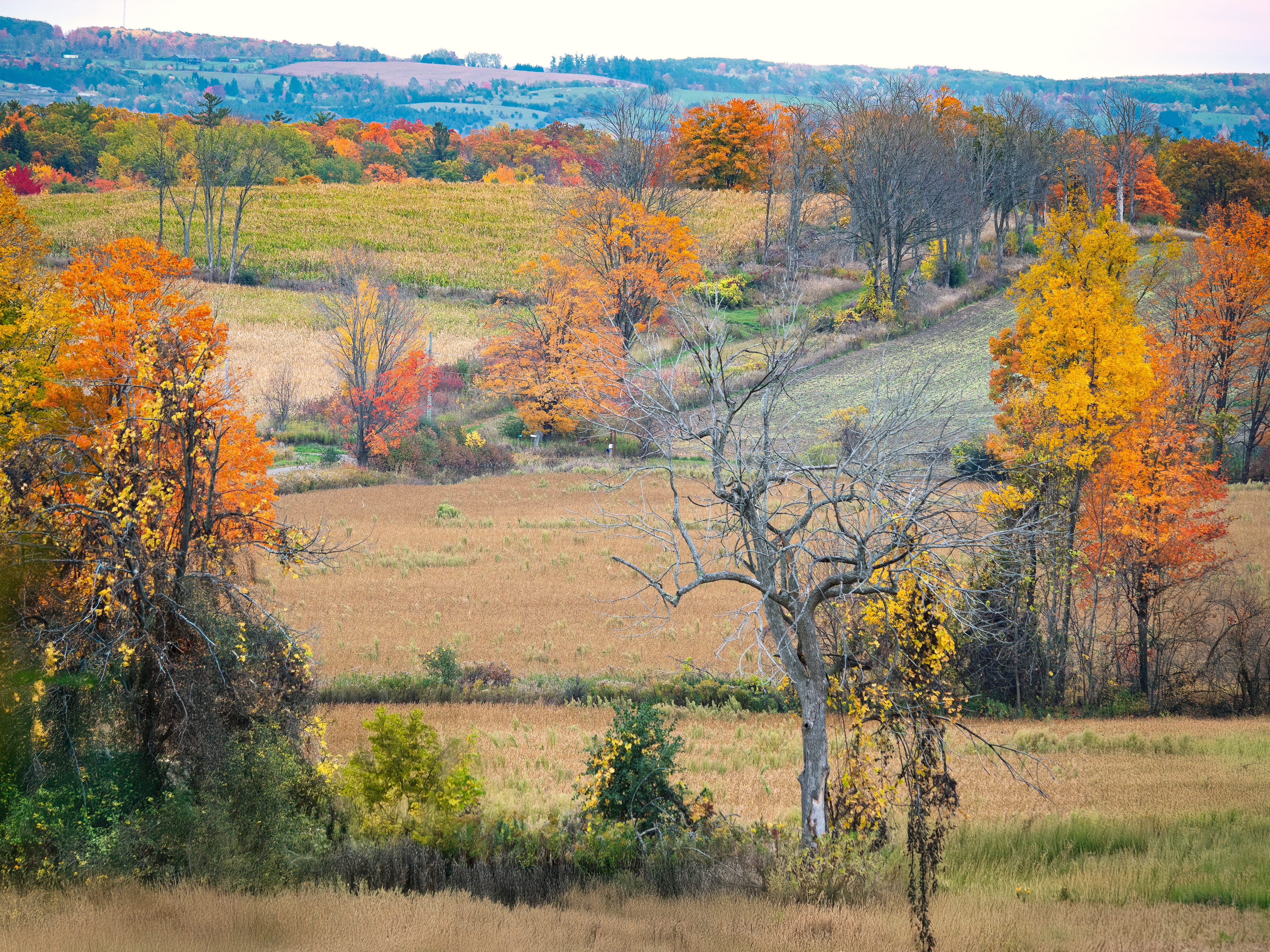
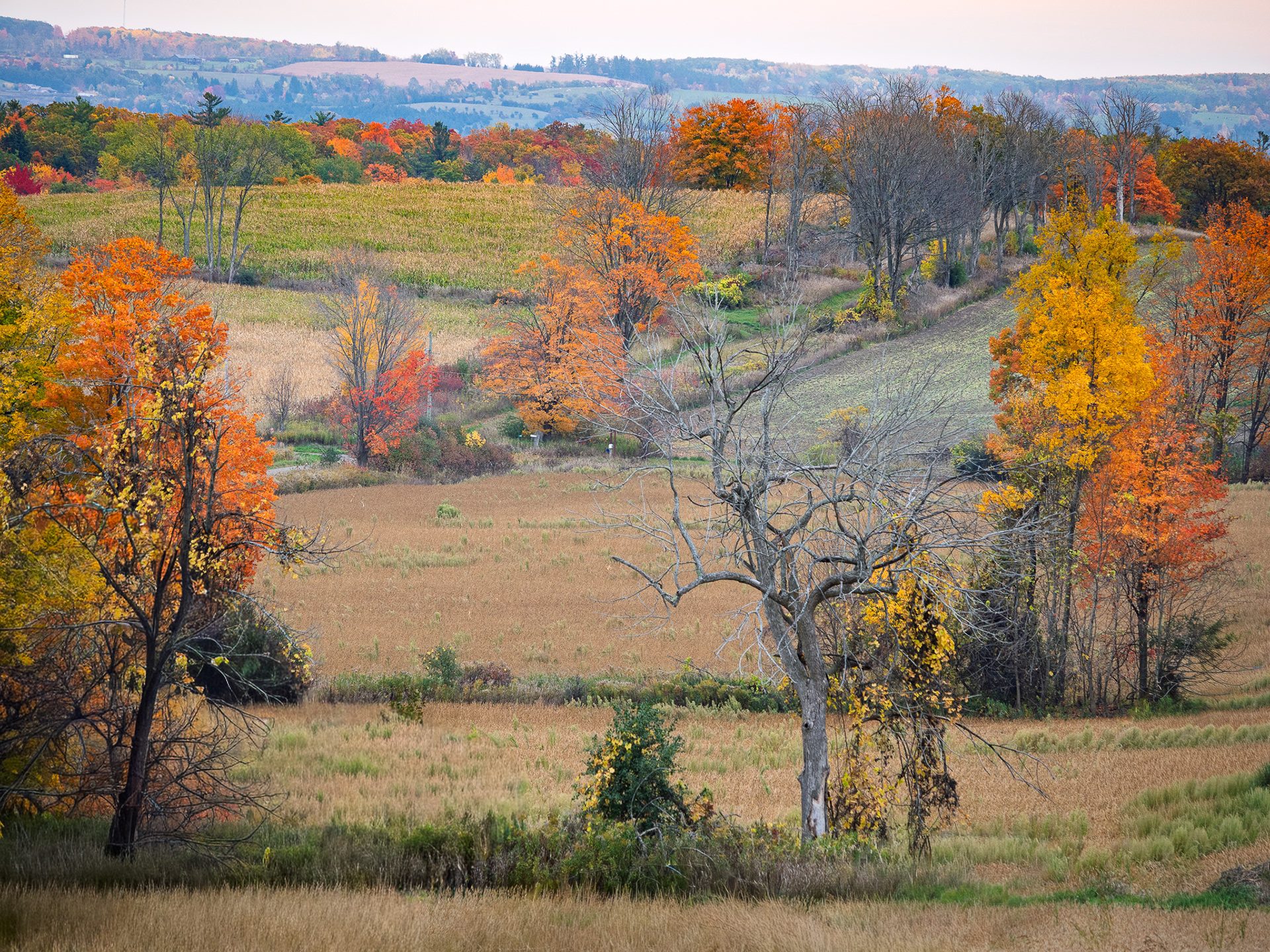
I couldn't get this composition without the blurred branches in the foreground, so I made the shot with the intention of seeing if I could correct during post processing. This was again a combination of Generative Remove in both Lightroom and Photoshop. I ran a few generations in Photoshop and came up with a couple options that I liked for different reasons.
Reason 2 - Expanding an image
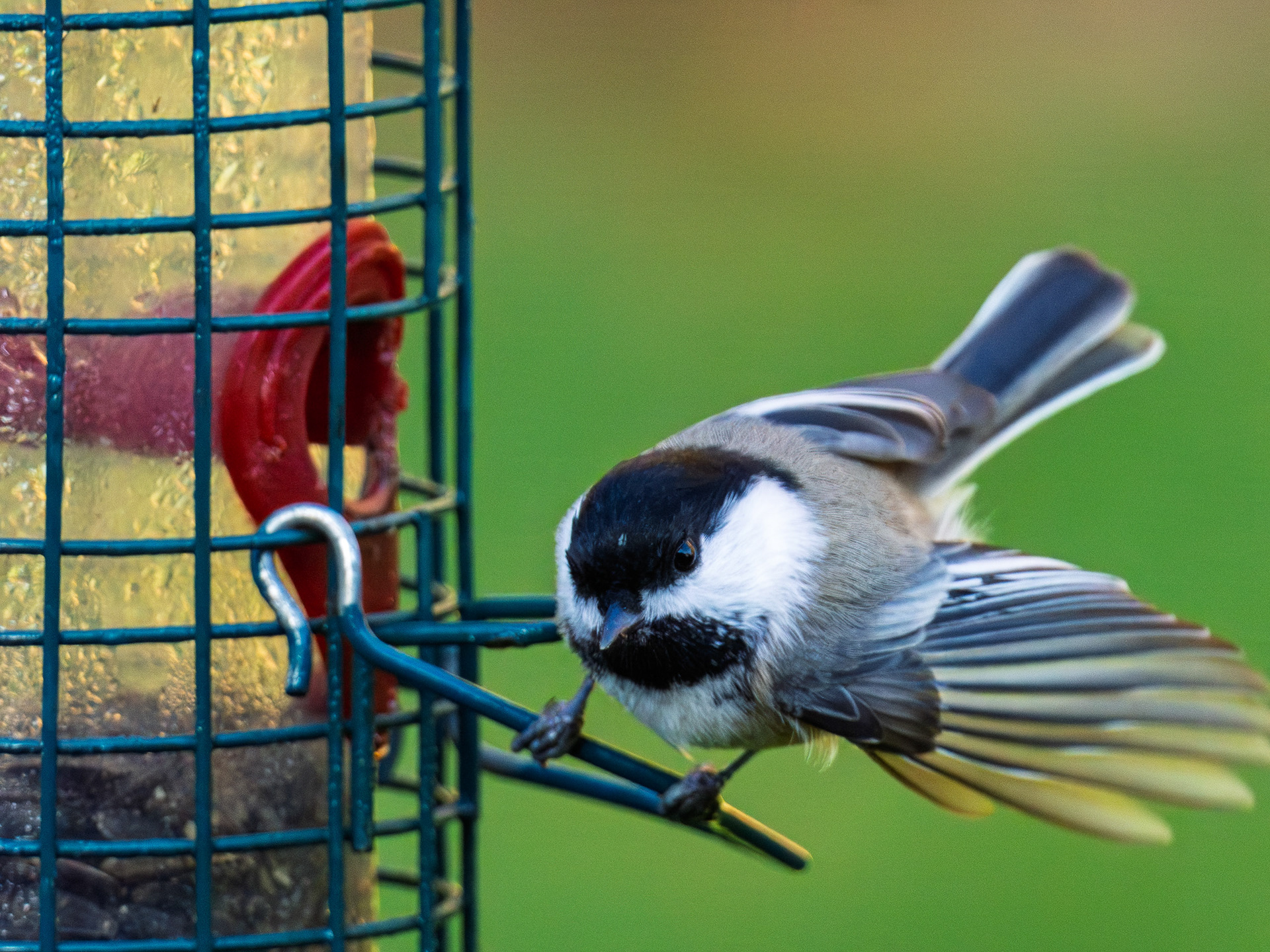
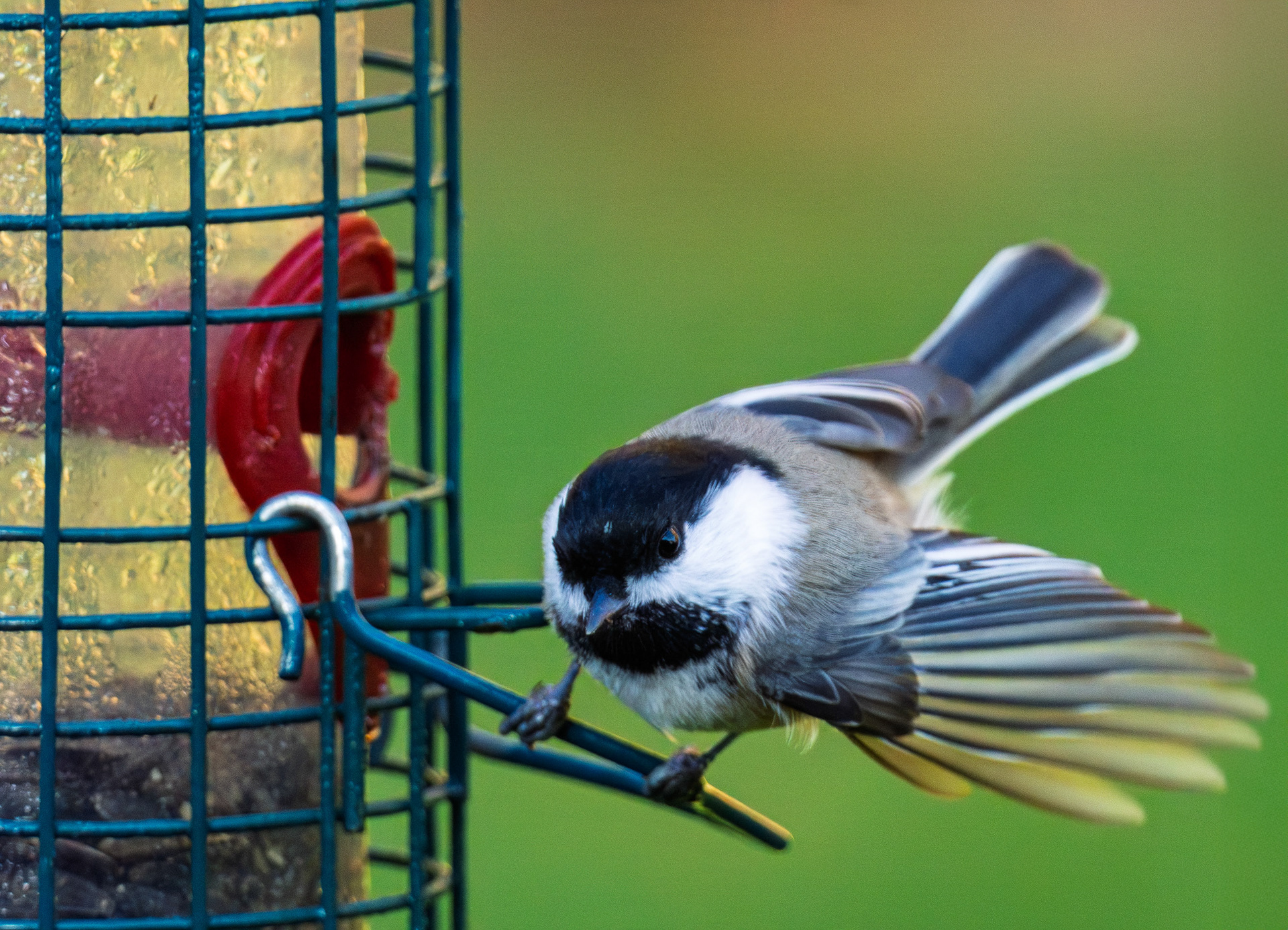
In this before and after image of a chickadee landing on my feeder, my original capture clipped the wingtip of the bird, so I thought I would use Generative Fill/Expand in Photoshop to add some breathing room (and the wing tip) on the right. Photoshop and Firefly did a passable job, but there are were still two challenges: resolution and grain. Generated content is created at a resolution of 1024x1024 pixels, which means that if you are replacing an area larger in dimension, the image quality can break down.
Matching the random grain/noise pattern found - in this case - in a high ISO image is not perfect either. So, after adjusting image to extend the right side, I brought the image back into Lightroom and use the more traditional retouching tools (Heal) to transpose a more seamless noise/grain pattern found in the rest of background.
Reason 3 - Compositing
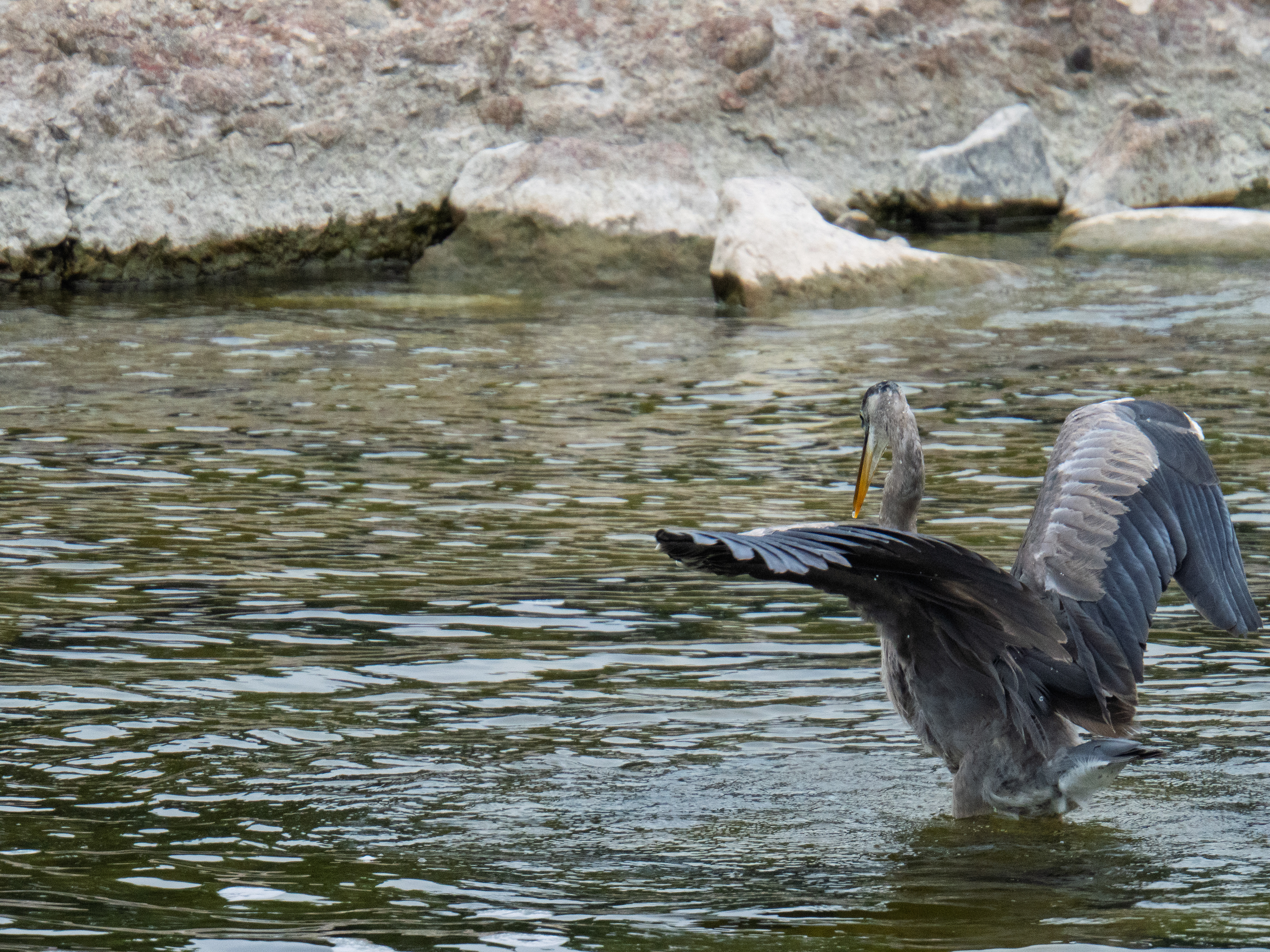
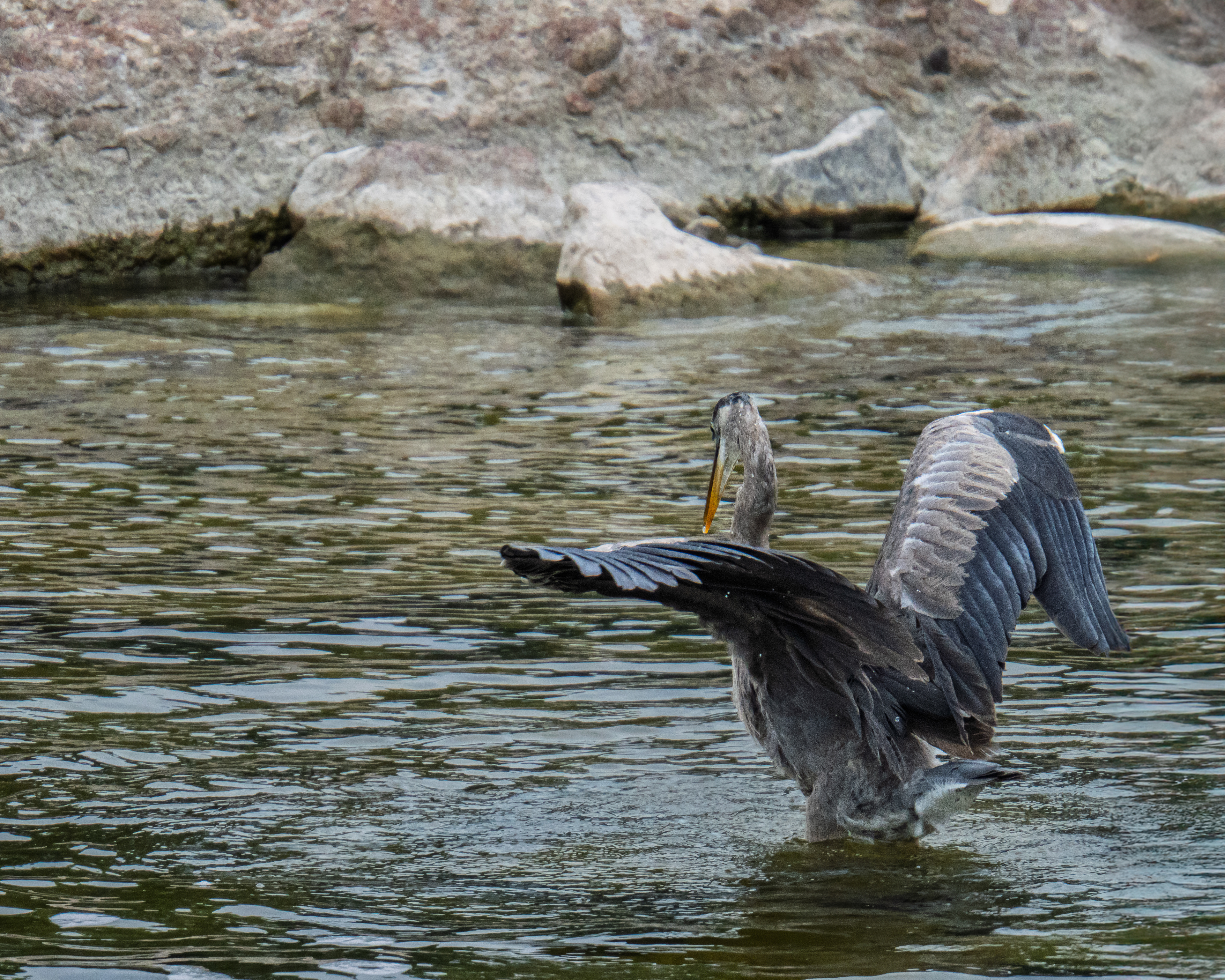
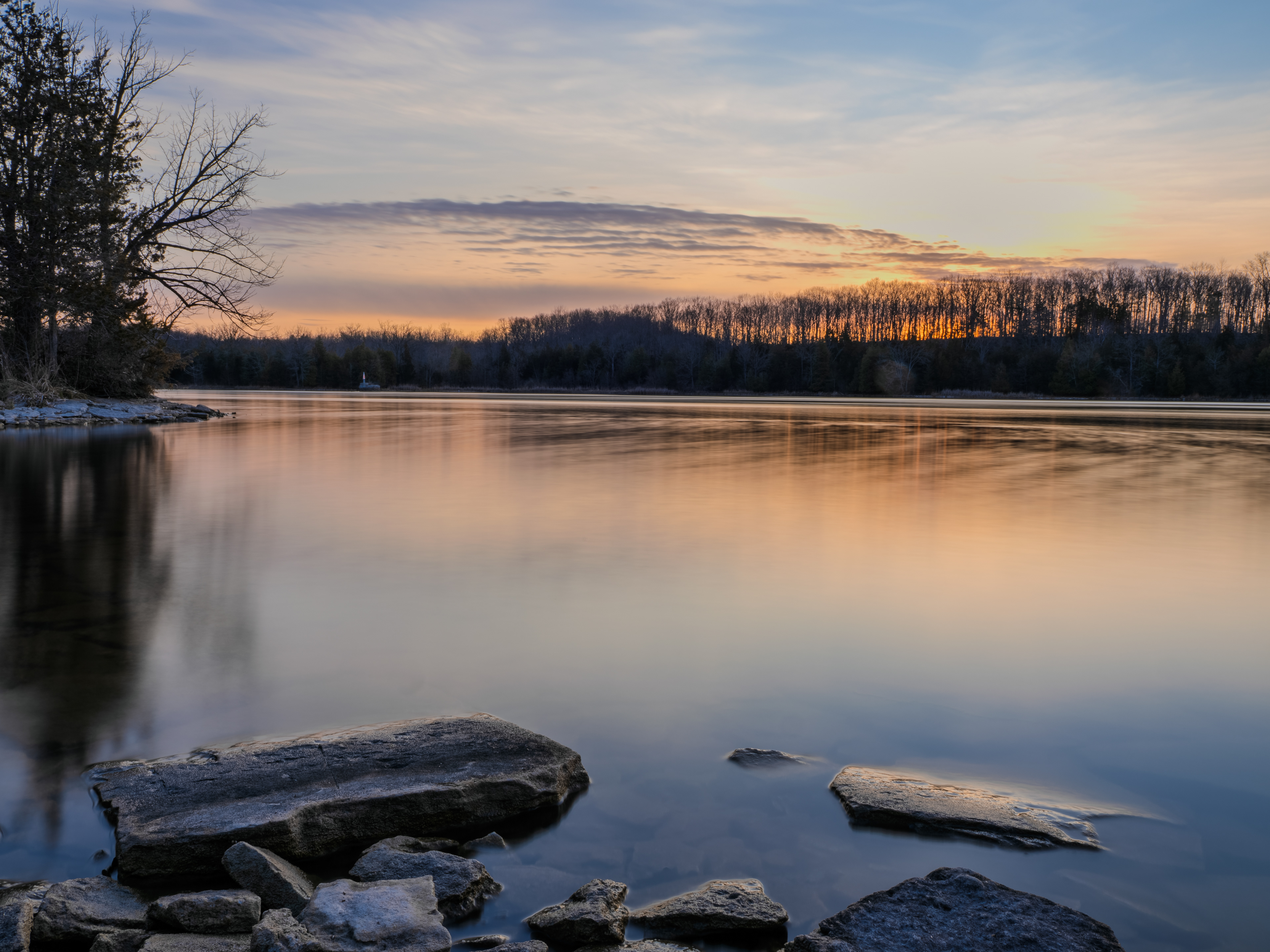
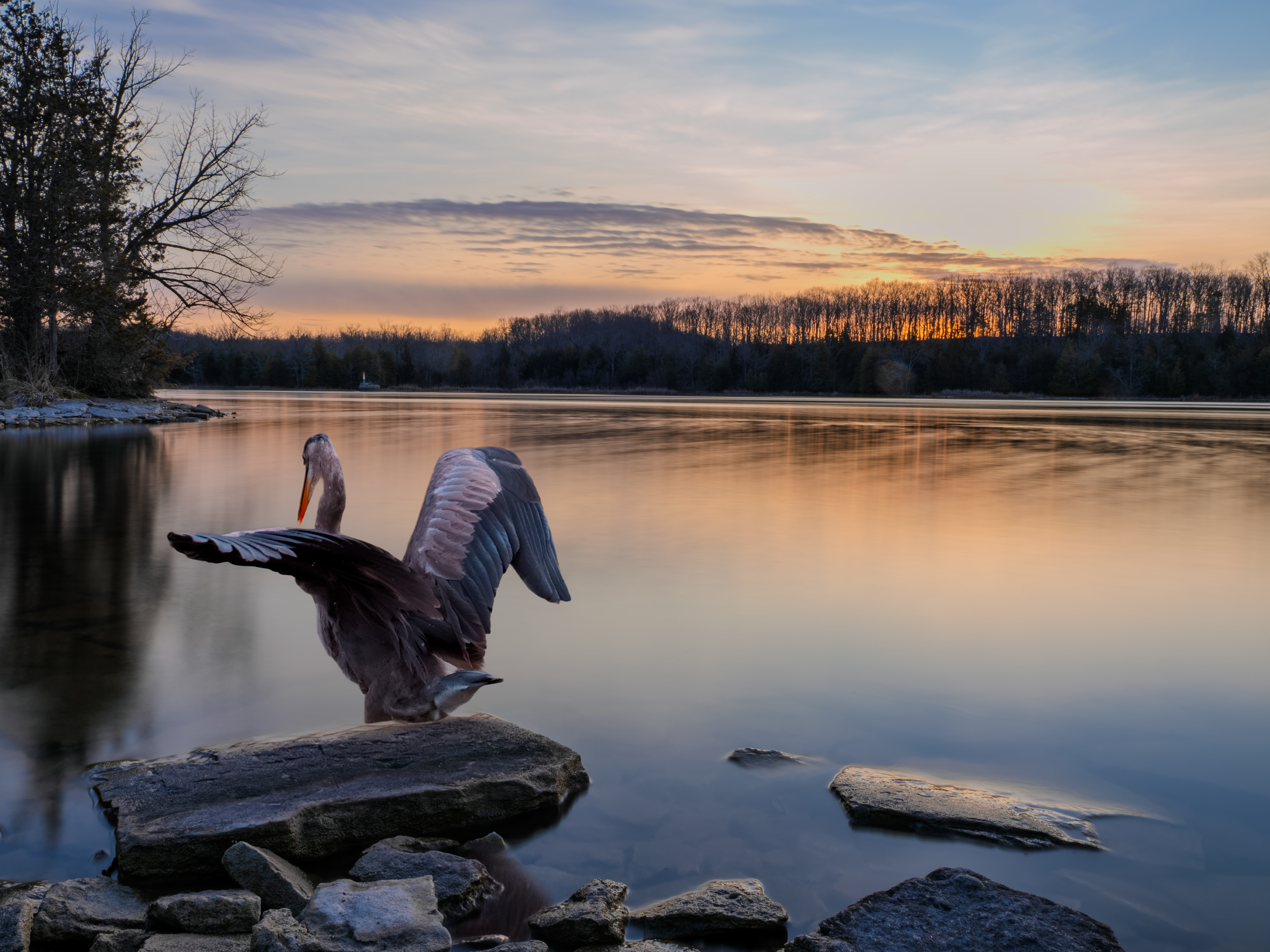
I've mentioned before that I call myself an "opportunistic wildlife photographer"; I basically respond and try to capture wildlife if it happens to be on the scene. It's rarely my main intention. As a result, sometimes my captures are a little off as in the case of this Great Blue Heron, where the wing tip is cut off. I used Generative Expand in Photoshop to give the bird a bit more breathing room. As it stands, this works well, but then I decided to test out the new Harmonize feature in Photoshop, which can help blend lighting quality, color and direction between two very different images, right down to adding shadows or reflections!
Reason 4 - Still Life to Action
With the introduction of Firefly video and recent access to new 3rd party Gen AI models, I thought I would take my composite image a step further, and bring it to life, in 1080p. I used the image as a starting frame and then created a 5-second clip with the Firefly video model. I wanted something longer in duration, so I then captured the last frame of the first clip as astatic image, and used it to create another 5 second clip. Firefly didn't do as great a job with this rendition, so I tried using Veo 3.1. Not only did Veo do a phenomenal job, it also added its own audio effects!
I continued in Firefly to generate additional sound effects and a custom audio music track, then assembled all the parts using Adobe Express. above is the final video. I'm currently working on an article that breaks down this project in more detail. Stay tuned!
Reason 5 - Removing Reflections
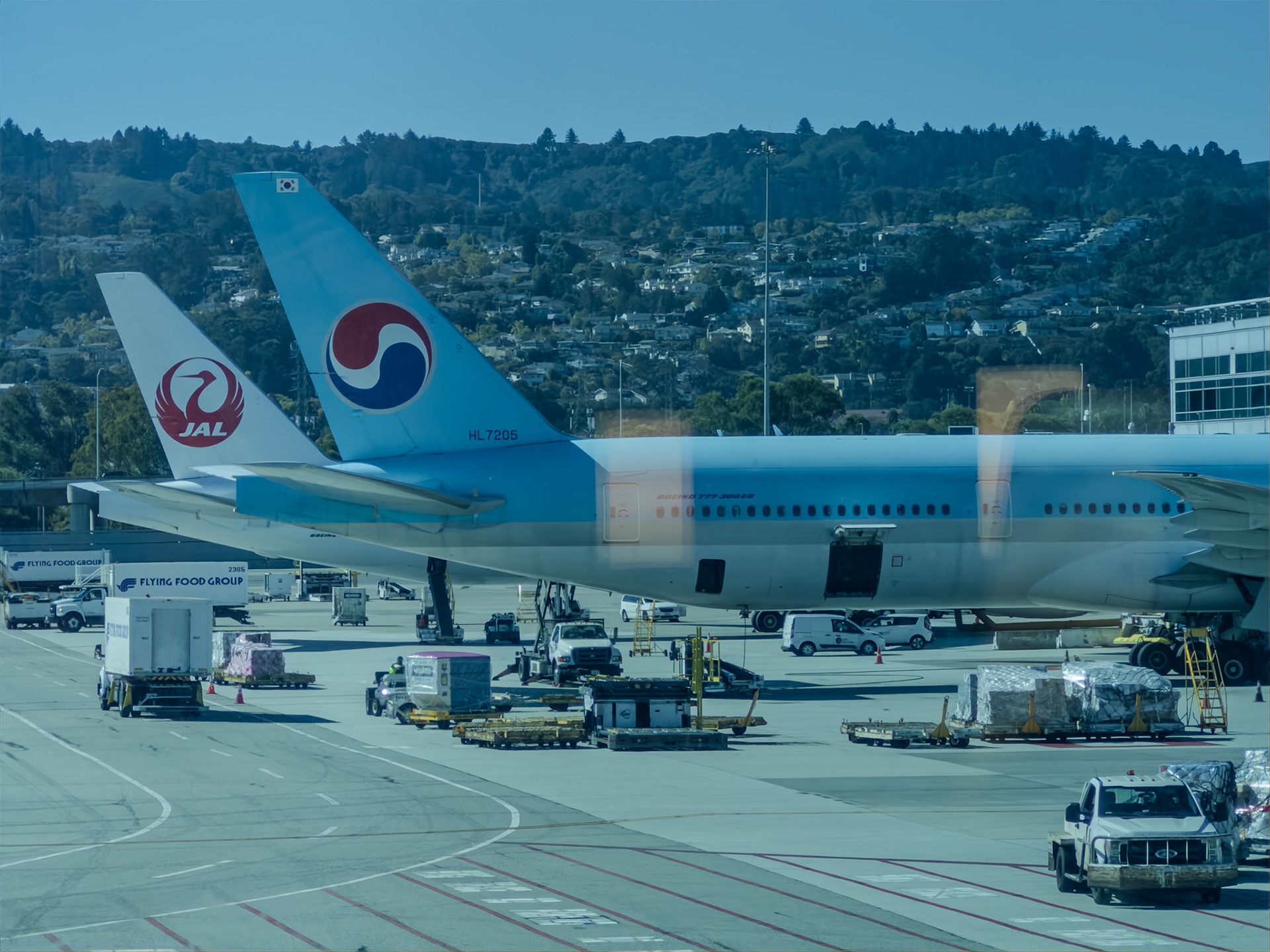
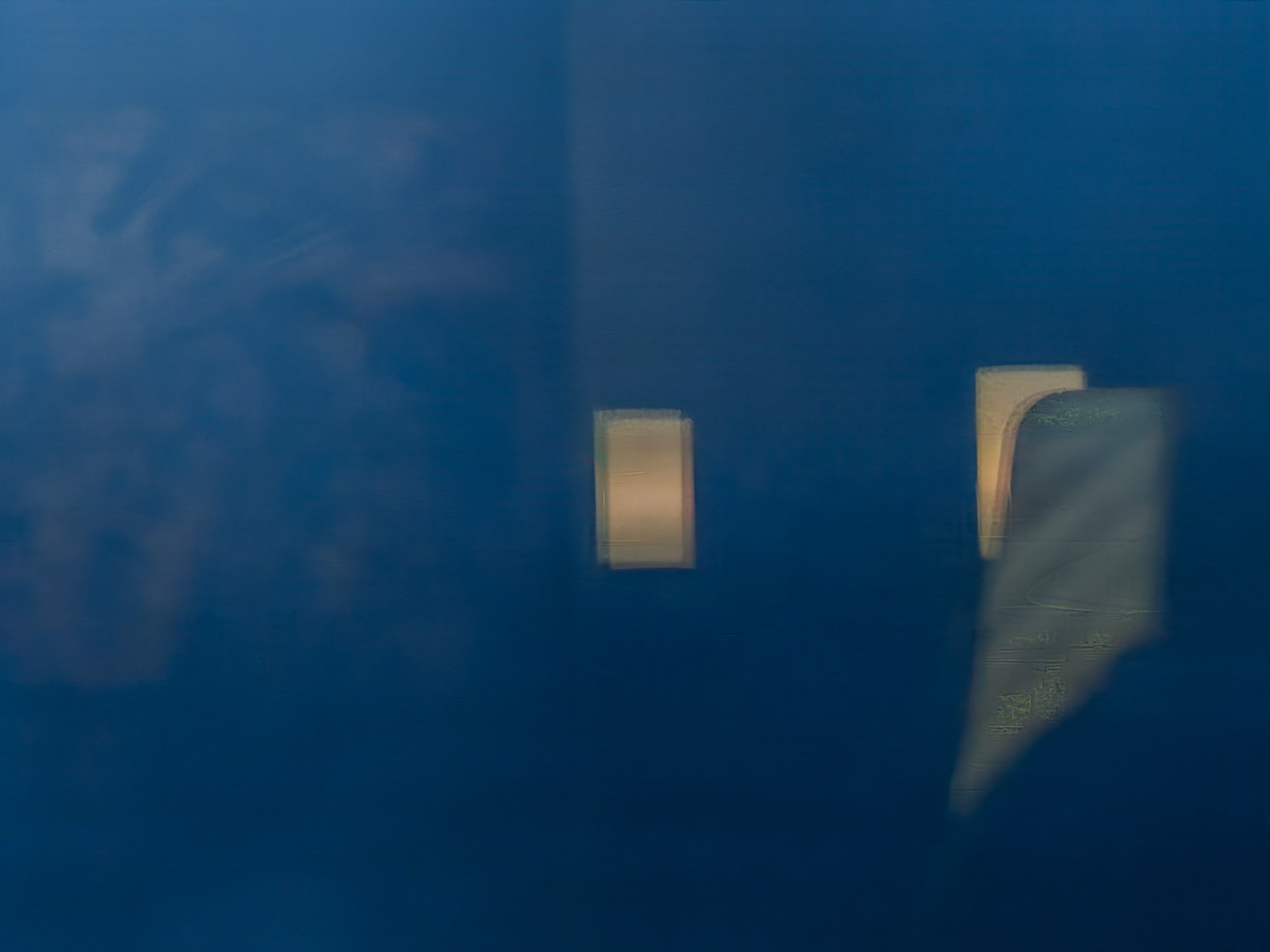
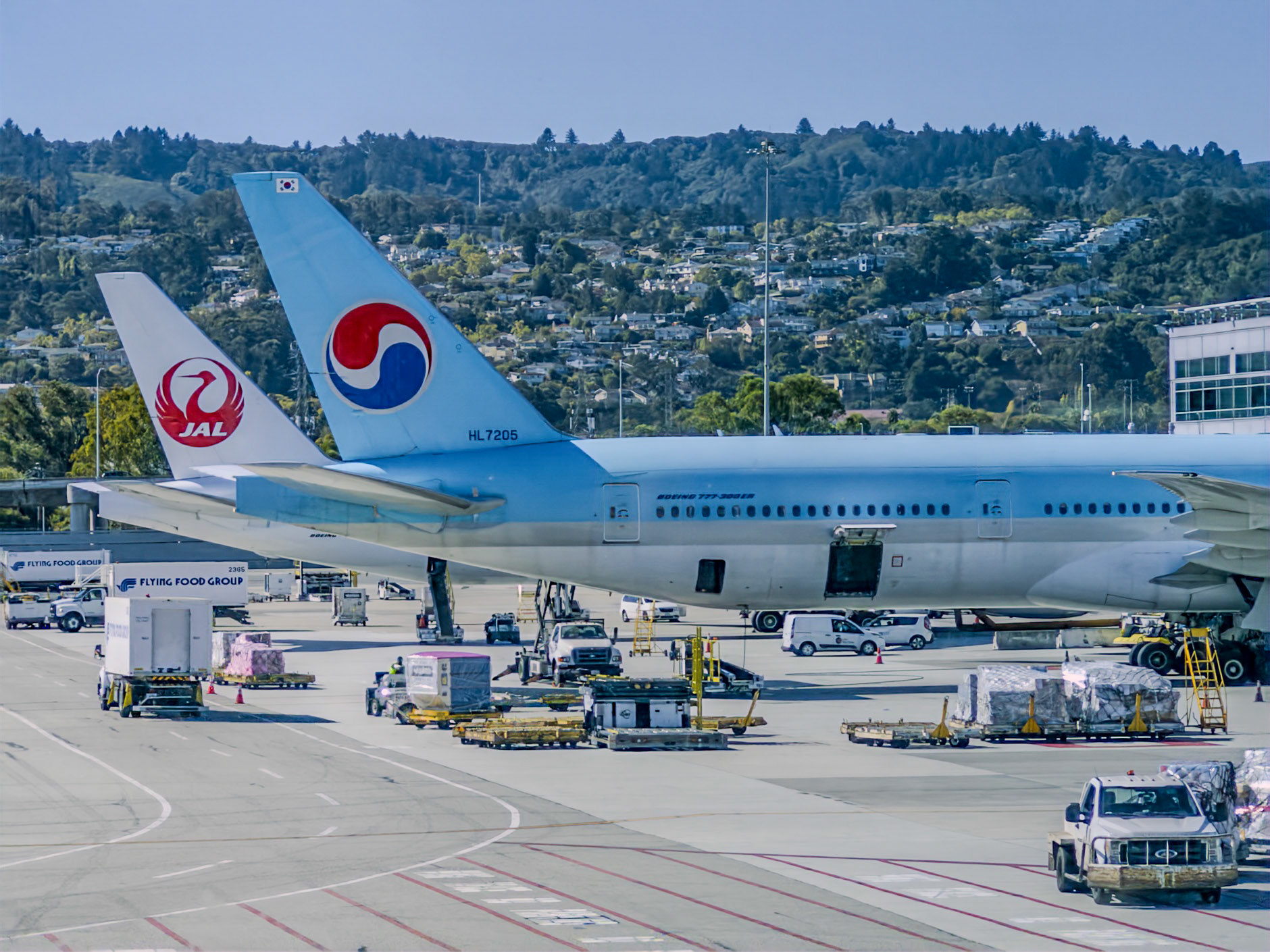
Eliminating reflections from glass has been a long-time challenge for photographers, often requiring the use of a polarizing filter or a change in composition - or both! Lightroom, Adobe Camera Raw and the free beta mobile camera app, Project Indigo, now give you control over those types of reflections, as can be seen in this example, captured recently while I waited for my flight. On the left is the original image, in the middle, the "separated" reflection and on the right, the final image with some color correction applied. You can control the degree of reflection removal with a simple slider.
Tech Note: While this may look like Generative AI magic, it's important to note that this identification and separation of the reflection is AI-powered, but NOT generative AI.
Wrap Up
And there you have it; my 5 top reasons for occasionally choosing Generative AI in my post processing workflow.
Worth mentioning also is the new AI-powered Dust Removal tool. I did not have a good example handy at the time of publication, but if you've got a dirty sensor, you know the pain and tediousness of having to manually remove dust spots. The new Dust Removal tool (found in the Remove Tool) will identify and clean up those pesky spots in a fraction of the time you would have spent doing the same thing. A great quality of life addition to Lightroom.
I hope this article - and the entire series - have inspired you or at least helped you feel more informed about the potential and the limitations of generative AI. Until next time!